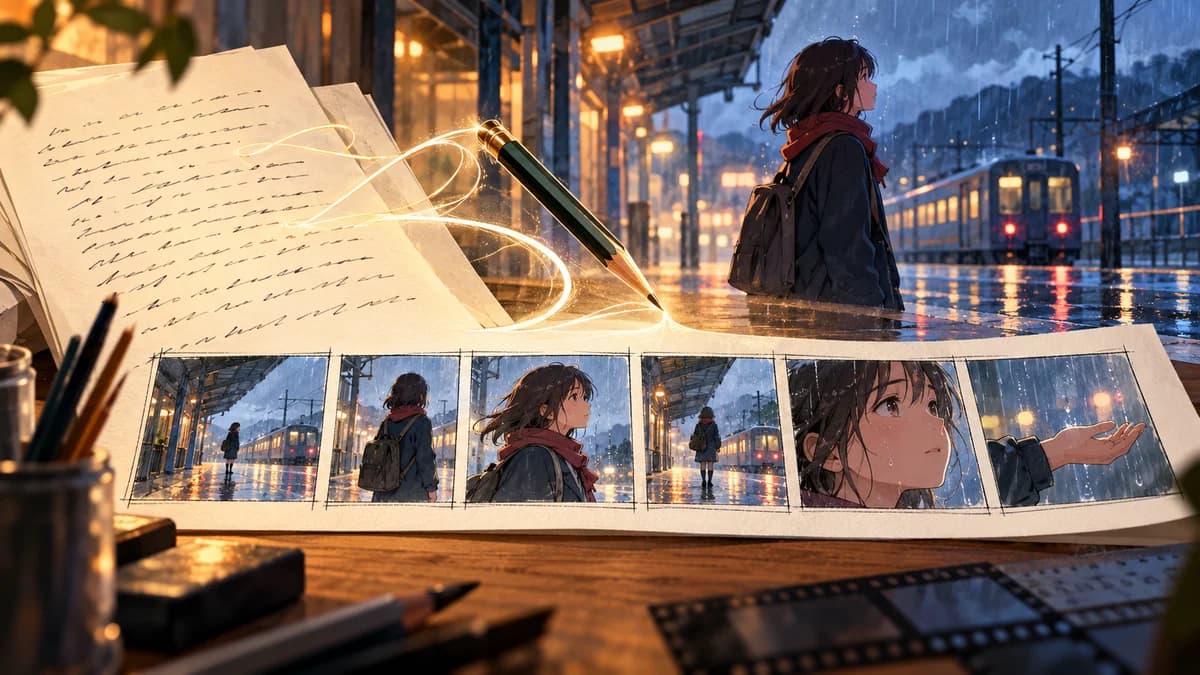
Script-to-storyboard AI works best when it converts writing into production decisions, not just a batch of unrelated images. A useful storyboard must preserve characters, geography, screen direction, pacing, and the purpose of every shot.
Worked Example: A 30-Second Scene
This is a teaching scene, not a customer case or a claim about generation speed. A detective waits, receives an envelope, reads it and leaves. Six shots give each beat a purpose while reusing one character, one room and one prop. The timings total 30 seconds and are an editorial plan, not a provider duration guarantee.
| shot | seconds | purpose | framing | action | camera | audio |
|---|---|---|---|---|---|---|
| 01 | 4 | Establish | Wide | Detective waits by a window | Locked | Rain |
| 02 | 5 | Reveal | Insert | A sealed envelope slides under the door | Locked | Paper on wood |
| 03 | 5 | Action | Medium | Detective walks to the door | Side tracking | Footsteps |
| 04 | 5 | Detail | Close-up | Hand lifts the envelope | Locked | Paper rustle |
| 05 | 6 | Reaction | Close-up | Detective reads and looks toward the hallway | Slow push-in | Breath |
| 06 | 5 | Transition | Wide | Detective leaves through the door | Locked | Door hinge |
Download the editable CSV shot list
Before animating, check screen direction in shots 3 and 6, the hand and envelope in shot 4, and the reaction after the reveal. Approve the boards as a sequence. If shot 4 fails, regenerate that shot while keeping the other approved boards. Replace these example assets with your own versioned references.
What the AI Should Extract from a Script
Before generating images, parse the script into:
- scenes and locations;
- characters present in each scene;
- dialogue and narration;
- actions and emotional beats;
- props and continuity details;
- time of day and lighting cues;
- shot candidates and estimated duration.
This structured layer becomes the bridge between writing and visual generation. If it is skipped, the model must rediscover the story from scratch in every prompt.
Step 1: Create a Shot List
Give each shot one job. Useful shot purposes include establishing location, revealing information, showing an action, capturing a reaction, or transitioning between beats.
A basic shot record should contain:
- shot number and scene ID;
- subject and action;
- shot size and angle;
- camera movement;
- dialogue or narration;
- character, scene, and prop references;
- expected duration;
- status and approved version.
Step 2: Lock Character and Scene References
Create a small reference set for every recurring character. Define the scene separately so a change in camera angle does not invent a new room. If two characters share a shot, specify their relative positions and eye lines.
For serialized stories, store references at project level. Copying a long description into every prompt is less reliable than reusing approved assets and tracking which version each shot used.
Step 3: Generate Storyboards in Passes
Do not generate the entire episode at final quality immediately.
Composition pass
Use low-cost drafts to validate staging, shot variety, camera axis, and narrative clarity.
Consistency pass
Check faces, costume, props, palette, and scene geometry against the project bible.
Sequence pass
View boards in order with dialogue timing. Remove redundant shots, fix confusing cuts, and make sure reactions land after the events that cause them.
Final board pass
Promote only approved compositions to higher quality or animation-ready frames.
Step 4: Convert Boards into Animation Prompts
The storyboard already defines subject, framing, and environment. The motion prompt should focus on change over time:
Use the approved storyboard as the first-frame composition. [Subject] performs [one action]. [One camera move or locked camera]. Preserve character identity, costume, scene geometry, palette, and prop positions. [Audio and duration].
Avoid asking the video model to redesign the frame. Preserve the visual decisions that have already passed review.
One Storyboard Sheet or Separate Keyframes?
Keep a labeled contact sheet for human review and clean, individual frames for the generation handoff. They serve different jobs. In the official Seedance 2.5 prompt guide, checked October 27, 2026, a multi-panel image is a broad story reference; it does not enforce an exact panel-by-panel result. Separate images supplied as ordered keyframe references provide tighter visual guidance, without guaranteeing a pixel-perfect match.
| Handoff format | Appropriate use | What to check |
|---|---|---|
| One image containing several panels | Overall plot, staging and progression | Do not expect one output cut or a fixed duration for each panel |
| Individual images, identified in upload order as keyframes | Approved compositions that need to carry through to video | Match each image number to the intended frame and describe the action between frames |
BytePlus recommends simple line drawings, little text inside the image, and no more than 15 panels for its multi-panel workflow. This is a recommendation for Seedance 2.5, not a universal image limit or a guarantee of 15 accurately timed cuts. Check the selected model and provider before transferring the same setup elsewhere.
Handoff Example: Shot 03, from the Window to the Door
Use two approved medium-shot frames from the teaching scene above: 03_start_v02.png at the window and 03_end_v02.png at the door. These filenames are placeholders, not downloadable reference images or generated results. Record their approved versions, upload order, character reference and intended five-second duration beside shot 03. Keep the six-shot review sheet outside this particular generation request.
A teaching prompt to adapt after checking the provider's reference controls:
Image 1 begins shot 03; Image 2 ends the same shot. Treat them as keyframes in that order. The detective walks from the window to the closed door, moving left to right. Track alongside in a medium shot. Keep the coat, room layout and lighting consistent. One continuous five-second action, with rain and footsteps; no cuts or on-screen text.
This prompt has not been run as a model test. Compare the output against the two approved frames and the shot's purpose: identity, travel direction, envelope continuity and the handoff into shot 04. If the route or framing is unclear, revise the boards first. If only the movement fails, keep the approved images and adjust that shot's motion instructions. A version change means reviewing the replacement before reusing it in later shots.
For endpoint and duration constraints, continue with the Seedance 2.5 API guide; this handoff example does not imply that AniKuku exposes every provider reference mode.
Step 5: Keep Review States Explicit
Use clear states such as draft, needs revision, approved for animation, animating, and final. Store comments and versions at shot level. This prevents an editor from animating an outdated board or replacing an approved character reference without noticing.
Common Script-to-Storyboard Failures
Every shot is a medium shot
Assign shot purpose first, then vary establishing, close-up, insert, over-the-shoulder, and reaction shots according to the story.
Characters swap sides
Track screen direction and the 180-degree axis. State relative positions in two-character shots.
The environment changes every frame
Use one approved scene reference and preserve geometry, lighting, and palette across the sequence.
Storyboards look good but do not edit together
Review them as a timed sequence. A storyboard is an editorial plan, not a gallery of individual illustrations.
Final animation drifts from the board
Use the approved frame as a reference, limit the action, and tell the model which elements must remain locked.
AniKuku's Script-to-Storyboard Approach
AniKuku connects script analysis, shot records, character and scene assets, storyboard generation, and video output in the same project. This keeps decisions traceable and makes it possible to retry one shot without regenerating the episode.
FAQ
Can AI generate a storyboard from a script?
Yes. The most useful systems first turn the script into structured scenes and shots, then generate images from approved character and scene references.
How do I make AI storyboards consistent?
Reuse reference packs, lock scene geometry and style, generate in review passes, and track approved versions at shot level.
Should storyboards include camera movement?
Yes. Record intended camera movement and duration even when the board is static, because those fields guide later animation.